Installing Jenkins on Ubuntu 16.04
📚 tutorials

Installing Jenkins on Ubuntu 16.04

1 min read 295 words
1 min read
ShareWhatsAppPost on X
  • 1Ensure Java is installed on your Ubuntu 16.04 machine before starting the Jenkins installation process.
  • 2Add the Jenkins Debian package repository and its key to your system using specific terminal commands.
  • 3After installation, access Jenkins via http://ip_address_or_domain_name:8080 and complete the setup by entering the initial admin password.

AI-generated summary · May not capture all nuances

Key Insight
AskGif

"Ensure Java is installed on your Ubuntu 16.04 machine before starting the Jenkins installation process."

Installing Jenkins on Ubuntu 16.04

This article is in continuation of article https://askgif.com/blog/1/how-to-install-java-on-ec2-ubuntu-16-04/?lang=en. so the prerequisite is you should be having one ubuntu machine with Java installed on it.

Jenkins is an open source tool that help us to automate repetitive tasks like continuous integration and delivery of software. it is a JAVA based application that can be installed from Ubuntu packages.

In this tutorial we will be installing Jenkins by adding its Debian package repository, then will use that repository to install the package using command apt-get.
Installing Jenkins

First step is to add the repository key to the system.

$ wget -q -O - https://pkg.jenkins.io/debian/jenkins-ci.org.key | sudo apt-key add -

Once the key is added, we will be appending the Debian package repository address to the server's sources.list:

$ echo deb https://pkg.jenkins.io/debian-stable binary/ | sudo tee /etc/apt/sources.list.d/jenkins.list

Once both steps are done, we will be running update command so that we can use apt-get in the new repository:

$ sudo apt-get update

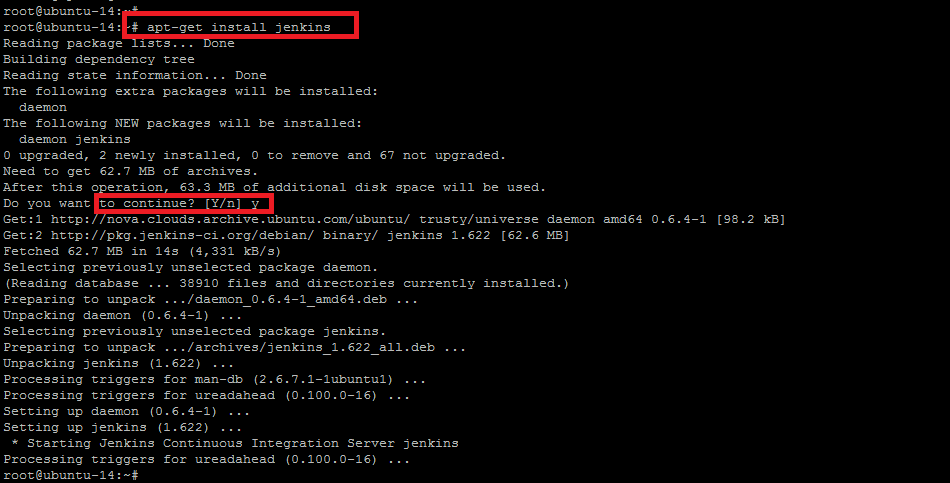
Last step for jenkins installation is to install Jenkins and its dependencies, including Java: we need to run following command:

$ sudo apt-get install jenkins

Once jenkins is installed successfully we will b using systemctl to start Jenkins:

$ sudo systemctl start jenkins

Installing Jenkins
Installing Jenkins

Setting up Jenkins

After complete installation of jenkins, we'll visit Jenkins on its default port, 8080, using the server domain name or IP address: http://ip_address_or_domain_name:8080

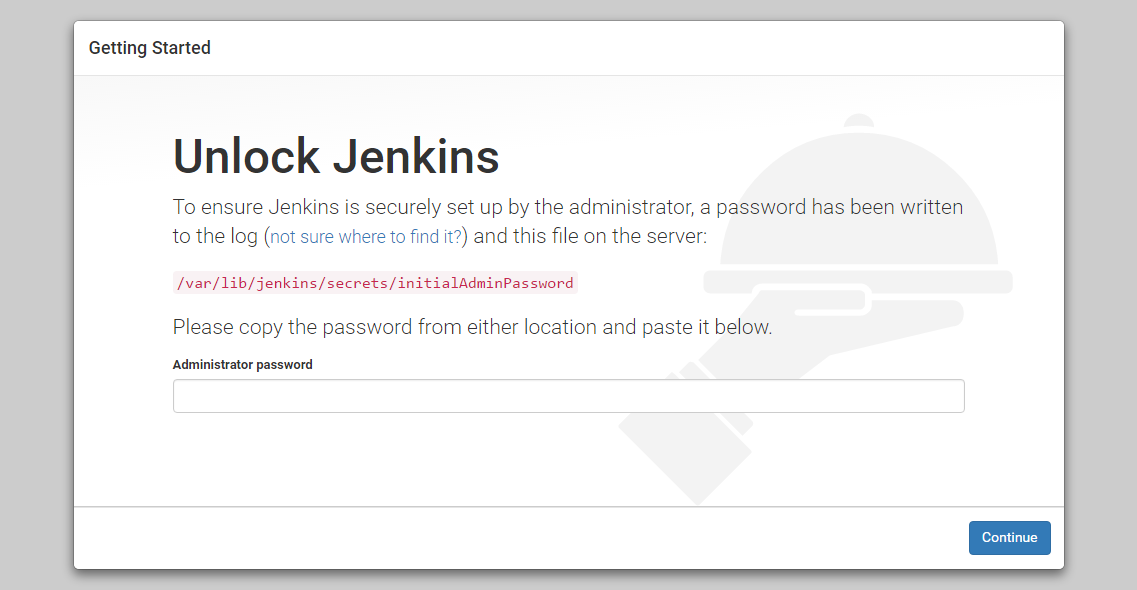
There we will see "Unlock Jenkins" screen, which displays the location of the initial password

Use the terminal window, to cat command to display the password:

$ sudo cat /var/lib/jenkins/secrets/initialAdminPassword

copy the 32-character alphanumeric password from the terminal and paste it into the "Administrator password" field, then click "Continue".

After that install suggested plugins. Then your jenkins will be ready to be used. You can add users after the successful installation.

Setting up Jenkins
Setting up Jenkins

Enjoyed this article?

Share it with someone who'd find it useful.

ShareWhatsAppPost on X

AskGif

Published on 5 July 2018 · 1 min read · 295 words

Part of AskGif Blog · tutorials

You might also like